IdP Integration: Adding Mappers
Dynamo AI's authentication system, Keycloak, supports the capability to integrate with many OIDC/SAML-based external Identity Providers. This enables enterprises to use their existing authentication systems for accessing the DynamoAI Application without having to onboard users onto Keycloak.
To access the DynamoAI application, an onboarded user must have a set of default roles for the function of the application. This guide aims to help set up those mappers to assign a default set of roles to all users onboarded via an external IdP.
Pre-Requisite
An External IdP Integration Setup within Keycloak.
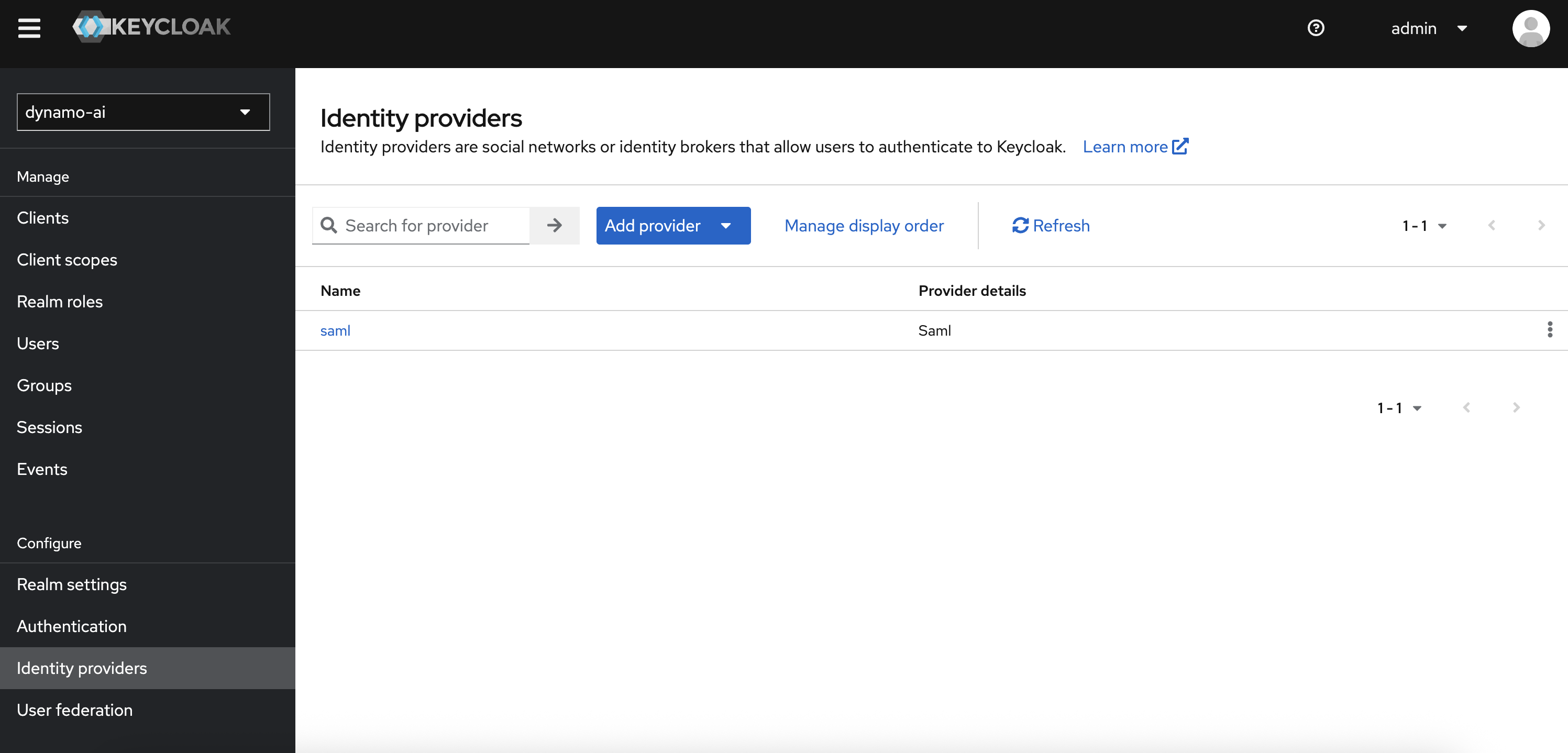
Setup Process:
Why are Mappers needed?
For users to function correctly in DynamoAI, all users must be:
- Assigned to at least one organizational level roles
- Part of the all users group
However, when first logging in to DynamoAI via your external IDP, users won't have these roles or be a part of the all users group. This can be resolved by using mappers in the IDP.
Add Mappers
Create the following mappers in DynamoAI's Keycloak:
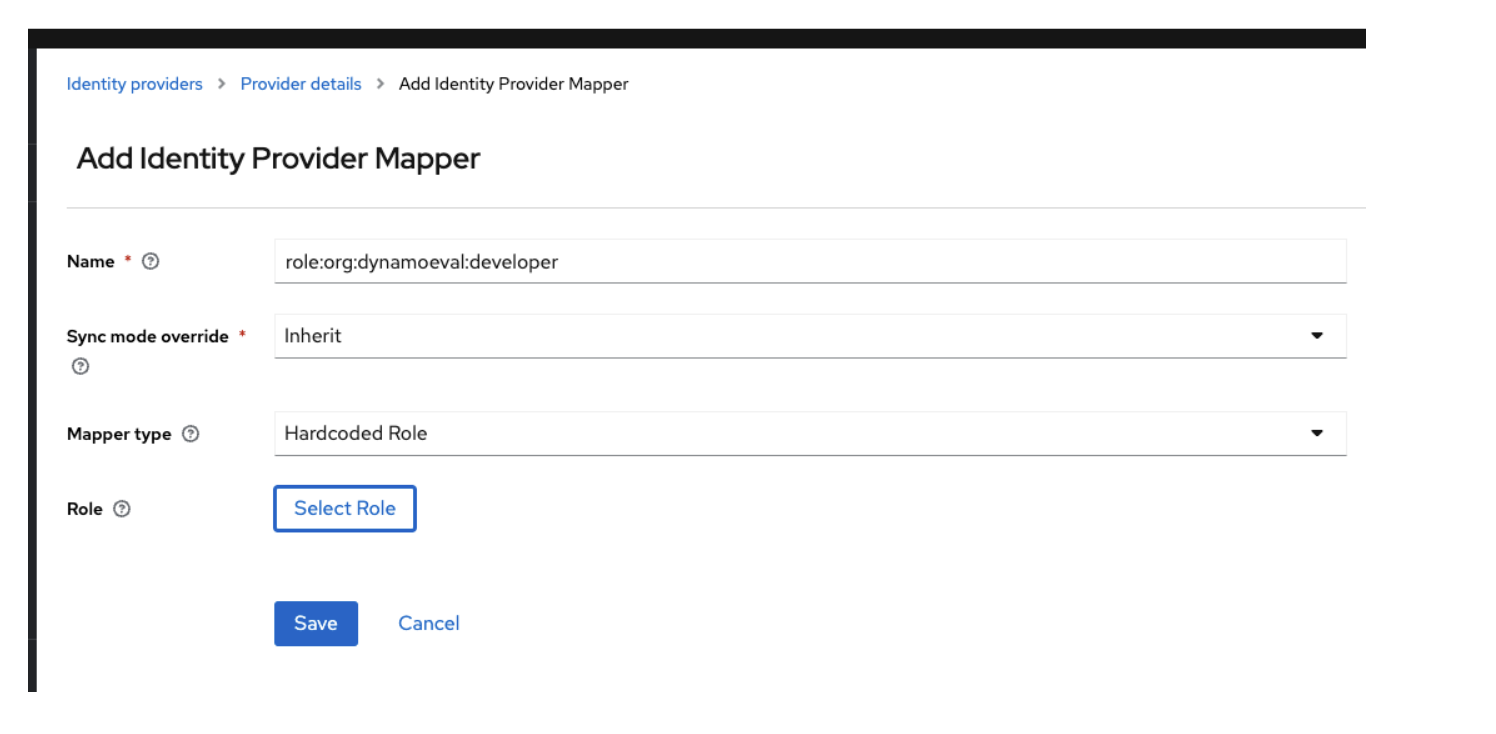
- ORG LEVEL ROLE - role:org:dynamoeval:developer
| Attribute | Value |
|---|---|
| Name | role:org:dynamoeval:developer |
| Mapper Type | Hardcoded Role |
| Sync Mode Override | Inherit |
| Select Role | org:dynamoeval:developer |
This Mapper ensures that when the user logs in for the first time, they get assigned the org:dynamoeval:developer role in DynamoAI. The roles can further be altered using the Organization Management Dashboard.
- ALL USERS GROUP - group:all-users
| Attribute | Value |
|---|---|
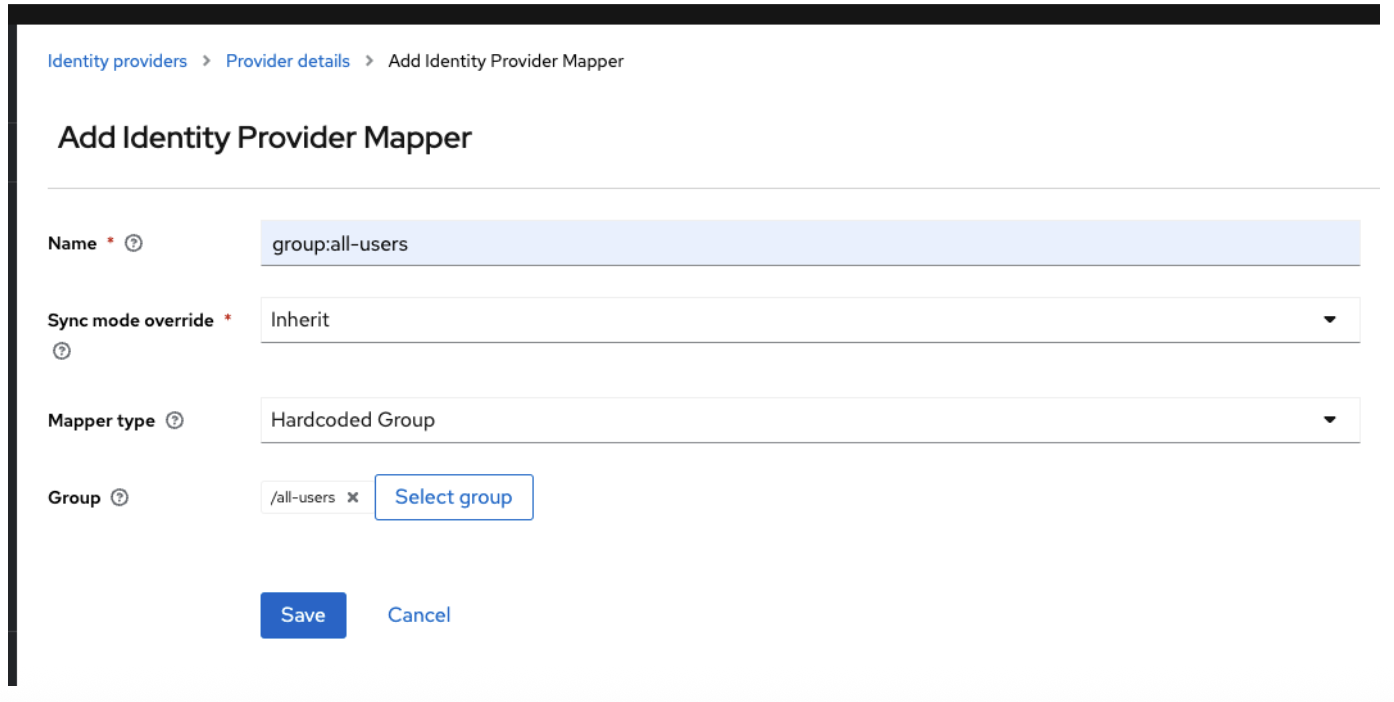
| Name | group:all-users |
| Mapper Type | Hardcoded Group |
| Sync Mode Override | Inherit |
| Select Role | all-users |
This Mapper ensures that the user is added to the all users group, so that the public sharing of the resource can function.
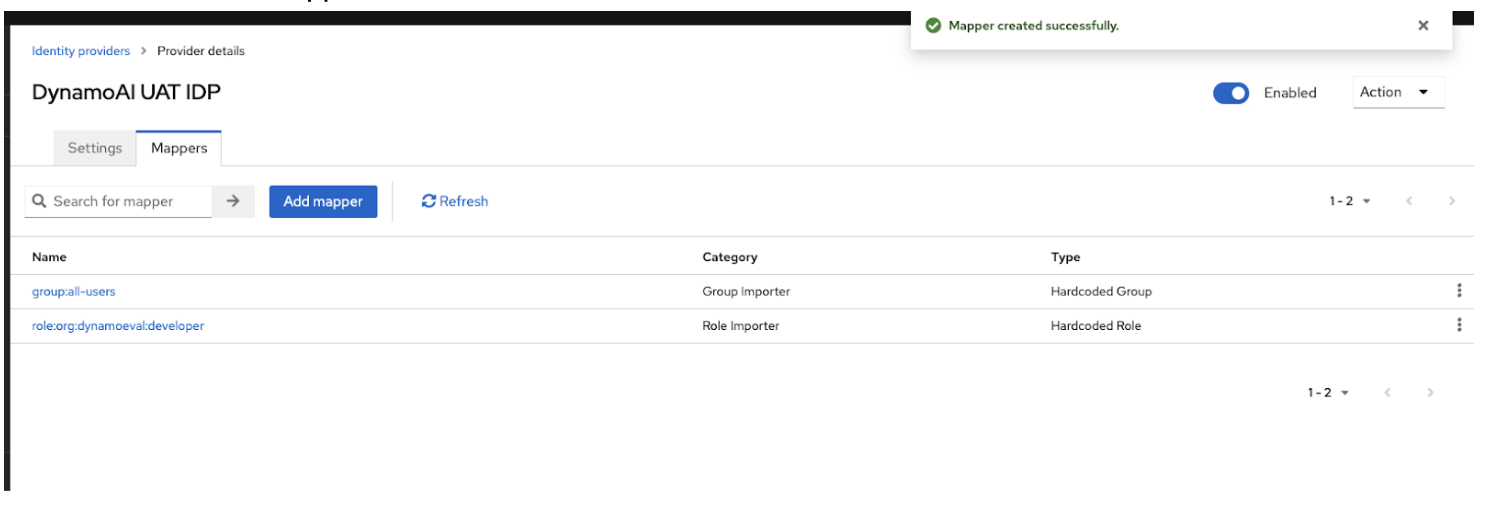
This is how the final mappers list should look like:
Note
You can configure additional org level roles, such as for dynamoguard, based on your organization's requirements. This flexibility allows you to tailor the role assignments to better fit your enterprise's needs.
Mapping Entra ID Security Groups to DynamoAI Roles
The hardcoded role mapper above assigns the same org-level role to every user who signs in through the IdP. When using Microsoft Entra ID as IdP, you can instead map Entra ID security groups to DynamoAI roles so each user receives roles based on their AD group membership.
In this approach:
- Keep one Hardcoded Group mapper for
all-users(required for all users). - Replace the single hardcoded org-level role mapper with one Advanced Claim to Role mapper per DynamoAI role you want to assign from Entra ID.
Pre-Requisites
- Entra ID registered as an Identity Provider in the
dynamo-airealm (Entra ID as IdP). - Entra ID security groups whose membership should drive DynamoAI role assignment. A single group can grant one or more DynamoAI roles; you do not need a separate AD group per role. Record each group's Object ID from Entra ID — that value appears in the
groupsclaim when tokens use Group ID.
Step 1: Add a Groups Claim on the Entra Application
Configure the dynamoai-idp app registration so Entra ID includes security group membership in the ID token.
-
In the Azure Portal, open the
dynamoai-idpapp registration. -
Go to Token configuration.
-
Click Add groups claim.
-
Select Groups assigned to the application (recommended). This emits only groups assigned to the enterprise application, which avoids Entra ID's 200-group JWT limit and prevents claim-based mappers from failing for users in many directory groups. After saving, assign each authorization group to the application under Enterprise applications →
dynamoai-idp→ Users and groups (see Entra ID Groups Claim Overage).For small tenants where every user belongs to fewer than 200 groups, Security groups also works — but prefer Groups assigned to the application for production deployments.
-
Under customize token properties for the ID token, choose Group ID.
-
Save the configuration.
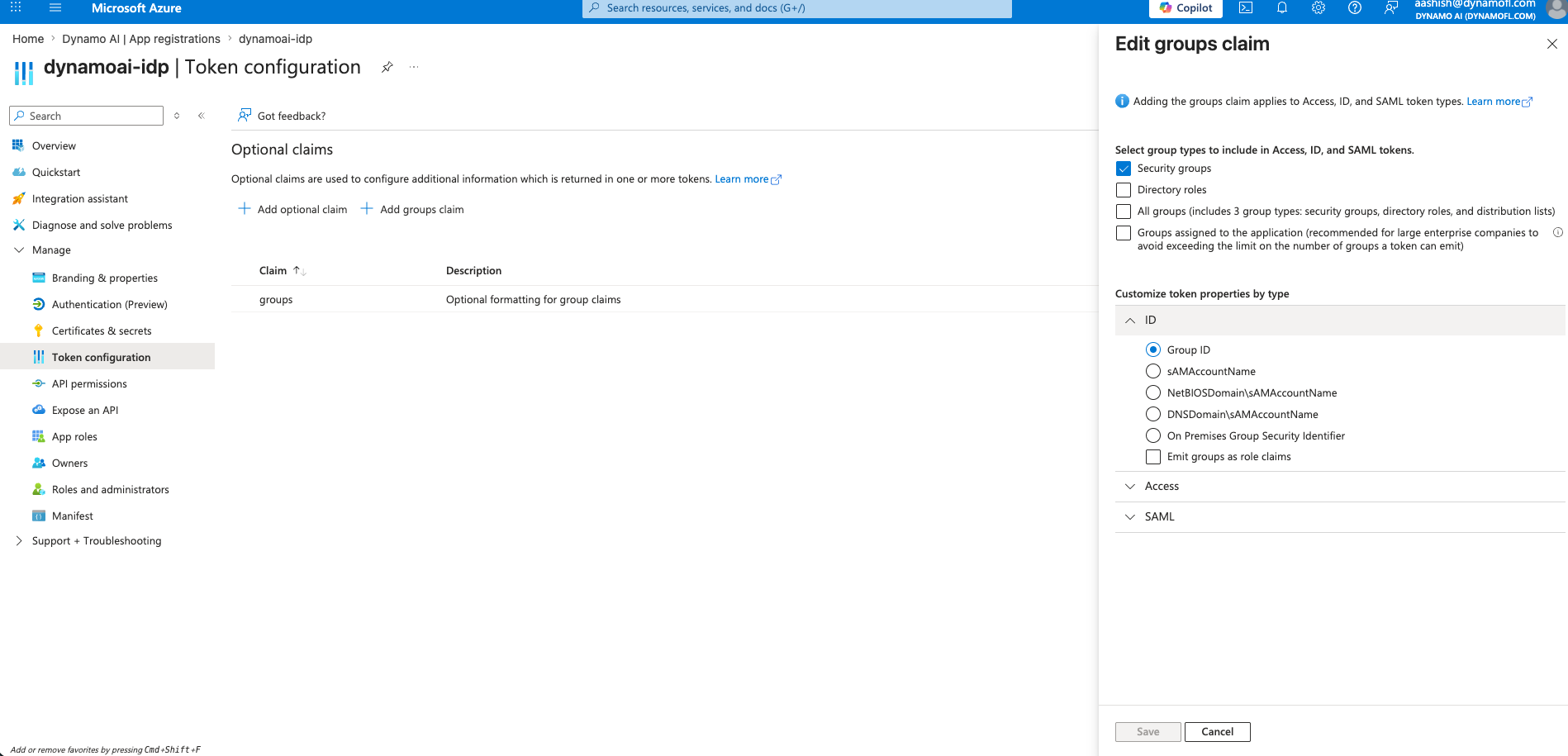
After this, each authenticated user's ID token includes a groups claim containing the Object IDs of the security groups they belong to.
Entra ID omits the groups claim when a user belongs to more than 200 security groups (or when the token exceeds size limits). Keycloak mappers then fail silently — the user signs in but does not receive claim-mapped roles. Use Groups assigned to the application instead of Security groups, and assign only the authorization groups to the enterprise application. See Entra ID Groups Claim Overage.
Step 2: Create a groups Client Scope in Keycloak
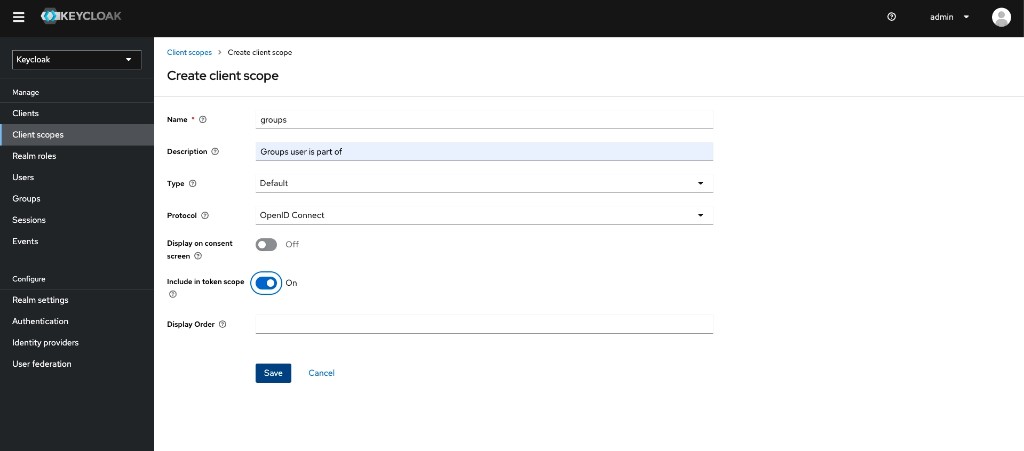
In the dynamo-ai realm, ensure a client scope exists for the groups claim so Keycloak can use it during IdP brokering and claim-based mapping.
-
Go to Client scopes.
-
If a
groupsscope does not already exist, click Create client scope and configure:Setting Value Name groupsDescription Groups user is part ofType DefaultProtocol OpenID ConnectDisplay on consent screen Off Include in token scope On -
Click Save.
Step 3: Add Mappers on the Entra Identity Provider
Open the Entra ID provider under Identity providers in the dynamo-ai realm, then add the mappers below.
Sync Mode Decides Whether a Mapper Ever Runs Again
Every mapper carries a Sync Mode Override. It decides whether the mapper is evaluated only when the user first signs in, or on every sign-in.
| Sync Mode Override | Behavior |
|---|---|
inherit | Uses the identity provider's own Sync Mode setting |
import | Applies at the user's first login only |
force | Re-evaluates on every login |
legacy | Keycloak's pre-10.0 behavior |
The tables below specify inherit, which resolves to whatever the identity provider is set to. Check that setting before relying on it:
- If the provider's Sync Mode is Import, a mapper added later never applies to a user who has already signed in. Signing out and in again does not help, because the mapper is not evaluated after the first login.
- If the provider's Sync Mode is Force, mappers re-evaluate on every login. A role that no longer matches is also removed, which is what makes the identity provider authoritative for role assignment.
Set the provider's Sync Mode to Force when identity-provider claims are the source of truth for roles. Use force as a per-mapper override where the provider must stay on Import for other reasons.
Under Force, a role assigned directly in the Keycloak console is revoked at the user's next login if no mapper grants it. Grant roles through mappers rather than by hand for any federated user.
1. Hardcoded Group — group:all-users
Every DynamoAI user must belong to the all-users group. Create this once as a hardcoded mapper (same as in Add Mappers):
| Attribute | Value |
|---|---|
| Name | group:all-users |
| Mapper Type | Hardcoded Group |
| Sync Mode Override | Inherit |
| Group | all-users |
2. Advanced Claim to Role — one mapper per DynamoAI role
For each DynamoAI org-level role you want to assign from Entra ID, create an Advanced Claim to Role mapper. Use this mapper type for both single-group and multi-group mappings — enabling Regex Claim Values lets one mapper match a single Entra group Object ID or any of several.
Example — map Entra group membership to org:dynamoeval:developer:
| Attribute | Value |
|---|---|
| Name | role:org:dynamoeval:developer |
| Mapper Type | Advanced Claim to Role |
| Sync Mode Override | Inherit |
| Claims | Key: groups; Value: a regex that matches the group Object ID(s) (see below) |
| Regex Claim Values | On |
| Role | org:dynamoeval:developer |
Claim value for a single Entra group:
.*(2017d303-c981-4120-a8ea-d349d5c82420).*
Claim value when multiple Entra groups should grant the same role (membership in any listed group matches):
.*(aaaaaaaa-aaaa-aaaa-aaaa-aaaaaaaaaaaa|bbbbbbbb-bbbb-bbbb-bbbb-bbbbbbbbbbbb).*
Replace the Object IDs with your Entra security group Object IDs. Add more IDs inside the parentheses, separated by |, for each additional group that should grant the role.
Each mapper is evaluated independently, so a mistake in one mapper removes exactly one role while every other mapper keeps working. The result looks like a partial role assignment rather than a broken mapper, and the Keycloak console reports no error. Three mistakes account for most cases:
| Mistake | Why it never matches |
|---|---|
Separating Object IDs with a character other than | | The pattern becomes a single literal string that no group claim contains |
| Using the group display name | Entra ID sends Object IDs in the groups claim, never names |
| Leaving Regex Claim Values off | The value is compared literally, so the surrounding .* prevents any match |
Verify against the resolved roles rather than the mapper definition, using the command in Testing.
Mapping patterns:
- One or more Entra groups → one DynamoAI role — one Advanced Claim to Role mapper for that role; include every granting group's Object ID in the claim-value regex.
- One Entra group → multiple DynamoAI roles — one Advanced Claim to Role mapper per DynamoAI role, each using that group's Object ID in the claim-value regex.
- Multiple Entra groups → multiple DynamoAI roles — combine the above: one mapper per DynamoAI role, each with the Object IDs of the groups that should grant it.
Repeat for every DynamoAI role you manage from Entra ID. Add or omit mappers to match the org-level roles your organization uses. Users who match multiple mappers receive every corresponding DynamoAI role.
NOTE: Do not keep a Hardcoded Role mapper for a role you assign via Advanced Claim to Role. Hardcoded Role would grant the role to every IdP user regardless of Entra group membership.Testing
-
Sign in to DynamoAI through Entra ID with a user who belongs to one of the mapped security groups.
-
Confirm the roles the platform resolved for that user:
Read a user's effective org-level rolescurl -s -H "Authorization: Bearer $ADMIN_TOKEN" \
"https://api.<domain>/v1/user/all?includeOrgLevelRoles=true" \
| jq '.users[] | select(.email=="USER_EMAIL") | {email, orgLevelRoles}'Every role the user's group membership should grant appears in
orgLevelRoles. Compare against the full set of mappers, because a partial result is a failure rather than a success. -
In Keycloak (
dynamo-airealm), open that user under Users and confirm membership inall-users. -
Sign in with a user who is not in any mapped Entra group. Confirm they are still in
all-usersbut do not receive the claim-mapped DynamoAI roles.
A user who receives no org-level role at all does not get a restricted interface. Requests that resolve permissions return a server error instead, so the first symptom is Error processing request. rather than a missing menu item. See A User With No Org-Level Roles Receives 500.